
The YOM SDK allows you to create and listen for your own custom events, allowing communication between the Unreal client and the pixel streamer / web browser. This guide explains how to set up and use them.
Step 1: Register a Stream Event
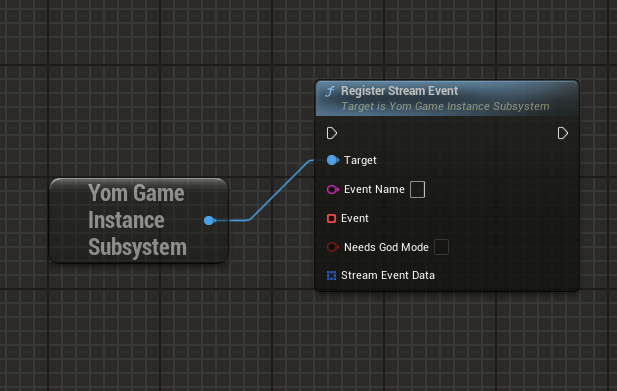
You get register a stream event by getting the YomGameInstanceSubsystem:
-
Set Event Name:
- Name of the function to call
- Will be displayed in the “GodMode” modal when enabled
- Used to call the linked event
-
Set Event:
- Event to be called when the function named FunctionName is triggered
-
Set NeedsGodMode:
- Determines if the event is added to GodMode
- Use for admin-only functions (GodMode requires a password)
-
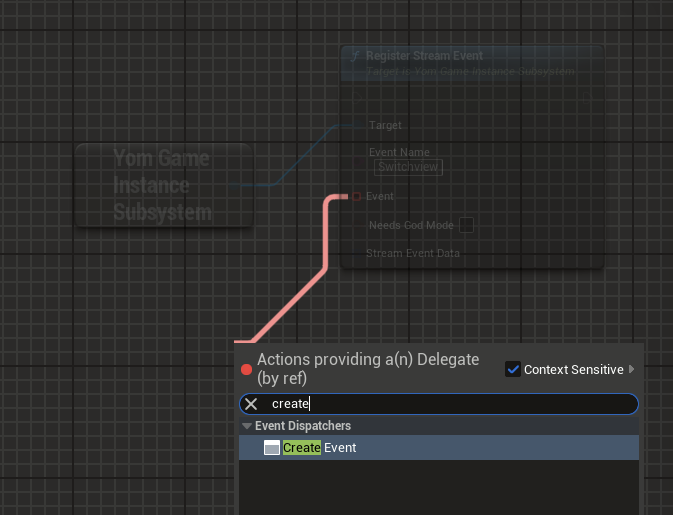
Create the event:
- Drag from Event and search for “create event”
- Select “Create Event” node
- Choose “select a function” and pick from the dropdown or create a new one

-
Set stream event data:
- When you have variables that need to be passed in your function you can already define what names they have so it will show up in the godmode.
- You need to create an array and add the amount of variables you have to that.
- Param Name: name of the param variable.
- Default Value: the value it needs to have or has at the start.
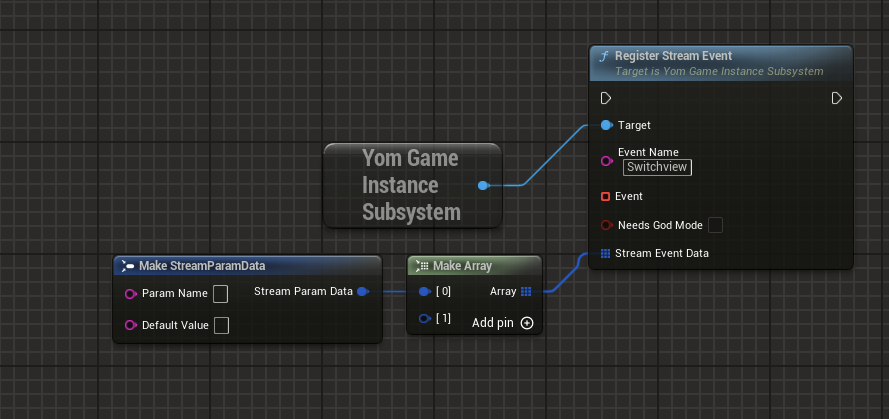
Note: The function input will be a Va Rest Json object, allowing data to be sent with the event.
Step 2: Handling Event Callback
To process data that is sent with the event:
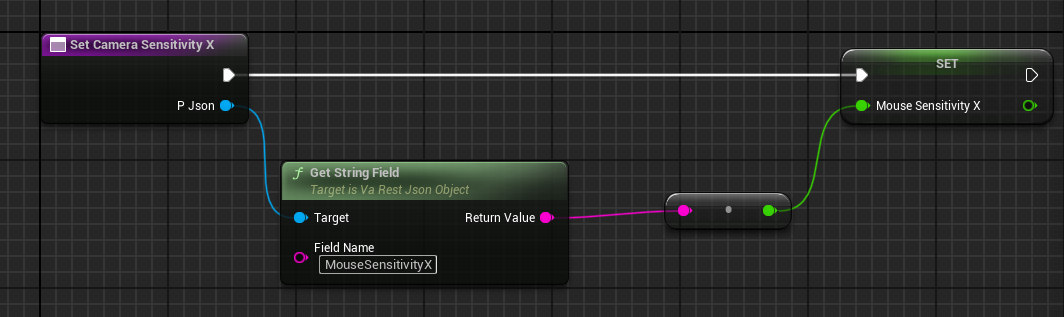
- Access the data object passed to the function
- Use “get field by name and type” to retrieve specific variables
- Implement your logic using the retrieved data
- Note that everything we send will be a string and you need to convert that to the type you need.